8/28/17

Evolution - how to connect to the Office 365 service.

Office 365 (Evolution) - Configure Evolution


Best Effort Support Only

This document contains instructions on using a non-Microsoft email client, such as Apple Mail or Thunderbird. Microsoft does not recommend these clients for use with Office 365, and there are often significant limitations in client functionality as a result.
Because of this, the DoIT Help Desk is only able to offer best effort support for these clients, and certain issues may require the use of a Microsoft client in order to be resolved. For more information on Office 365 client support, please see: Office 365 - Which clients/protocols will be supported?.

This document explains how to connect to the Office 365 service.
Important: Use of Linux/Evolution is not supported and therefore the Help Desk will not be able to provide any type of troubleshooting. Use these instructions as a general overview for connecting your Office 365 account UW-Madison's implementation.
To configure the Evolution client to access the Office 365 environment, follow the steps below. Note that these instructions use Evolution 3.6.2 and the evolution-ews plugin version 3.6.
  1. If you have not already done so, install the evolution-ews package using your favorite package manager. This document assumes evolution-ews version 3.6. Mileage may vary on other versions.
  2. Launch Evolution
  3. Add a new account by going to Edit | Preferences and choose Add from the Mail Accounts menu.
  4. Click Continue
  5. Enter your name as you'd like it to appear and "netid@wisc.edu" or "first.lastname@wisc.edu" or "name@domain.wisc.edu" for Email Address, click Continue
  6. The account information screen will find incorrect information. Click Go Back
  7. On the resulting window, enter the following information for each field:
    • Server Type: Exchange Web Services
    • Username: netid@wisc.edu
    • Host URL: https://outlook.office365.com/EWS/Exchange.asmx
    Note: for further server/account details, see - Office 365 - Server and Account Configuration Settings. Some additional details can be found at Cardiff University support site.
  8. Click Fetch URL
  9. You will be prompted for your password. Enter your test NetID password.
  10. Host URL and OAB URL should be successfully discovered. Click Continue
  11. Click Continue to accept Receiving Options
  12. Enter any name for the account, and click Continue
  13. Click Apply
  14. If prompted, enter your test NetID password once more.
  15. Setup is complete. Email and calendar data will take some time to sync.

See Also:

8/18/17

Configure Jenkins with Github, Artifactory and Sonar Qube

Configure Jenkins with Github,Artifactory and Sonar Qube

To configure and use Gitlab, SonarQube, Jfrog Artifactory in Jenkins
Requirements on Jenkins Server:
1) Install java latest version (jdk1.7&jdk1.8)
2) Install Maven-3.3.9
3) Gitlab plugin
4) Git plugin
5) Credential plugin
6) Artifactory Plugin
7) SonarQube Plugin
1. To configure Gitlab with Jenkins, a common user account needs to be created. Log in to the Gitlab page below as an administrator.
a) Go to “Admin area” page using the settings symbol at top right corner
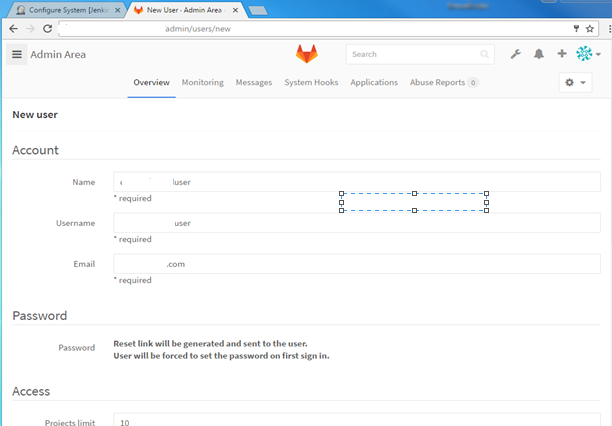
b) Click on “New User” button which takes you to the below screen
2. Enter the desired account details in respective fields and hit save.
a) An email with a link to reset the password will be sent to the email address entered above
b) Log out of current page and Log in from User account
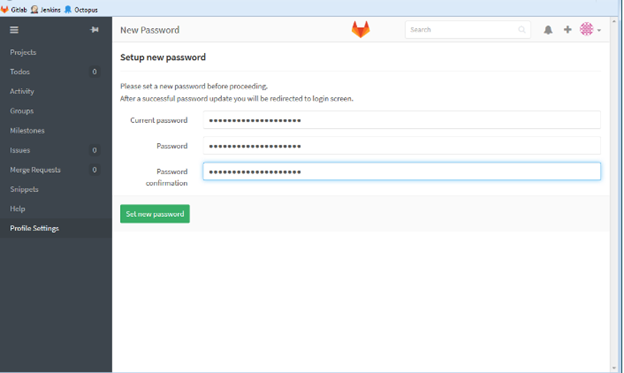
b) Password page as shown below will be displayed to enter a new password
3. An “Access Token” needs to be setup in order to use it with Jenkins to get metadata from Gitlab
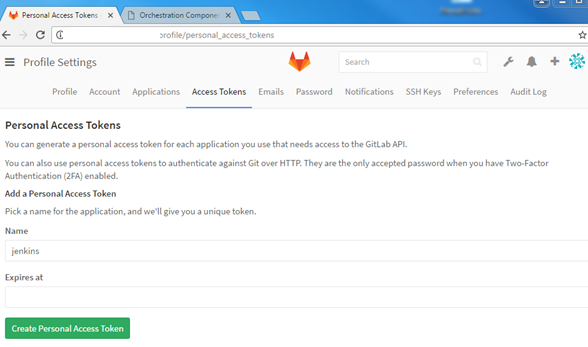
a) Go to Profile Setting, click on “Access Tokens” and create a new token:
b) Type the desired Token Name
c) Click “Create Personal Access Token
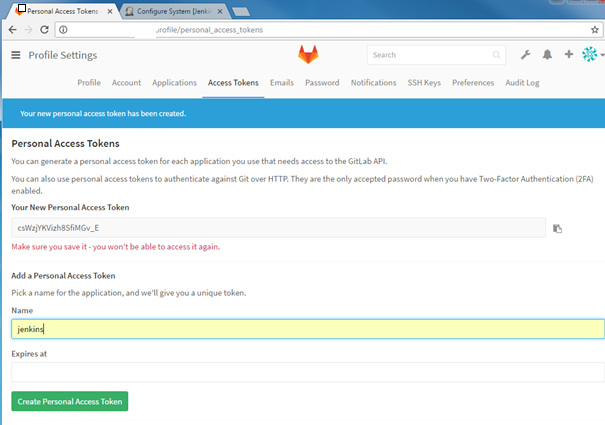
4. A personal Access Token string is generated as shown above
a) Copy and securely save the above token to avoid regeneration. However, you can create a new one if you lost or mess it up!
5. Log out of User Gitlab account and log back in as an Administrator.
6. Give the “user” account developer permissions to your new project/group
7. To do that, go to “Admin area” page
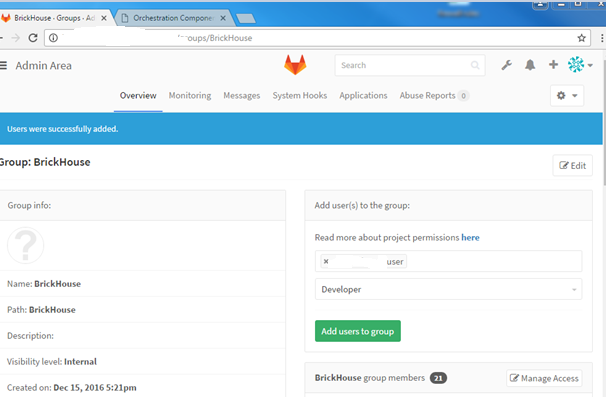
8. Hit on the respective Group or Project to add the user as shown below
9. For instance, type “user” to grant them developer permissions and hit “Add users to group
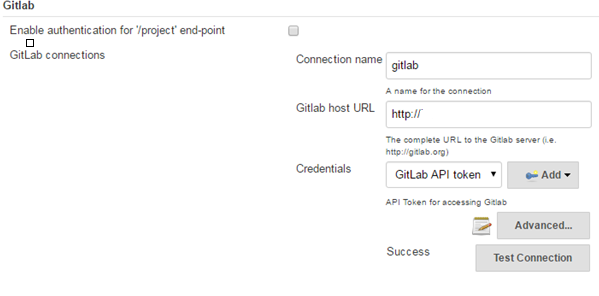
10. To configure Gitlab details in jenkins , so that jenkins can fetch up/checkout/get the code from the gitlab source control repositories we need to configure jenkins with the Gitlab server details in the jenkins configuration. Open up Jenkins page and navigate to “Manage > Configure System,” and scroll down to the “Gitlab” section. You’ll need to enter your Gitlab details into Jenkins.
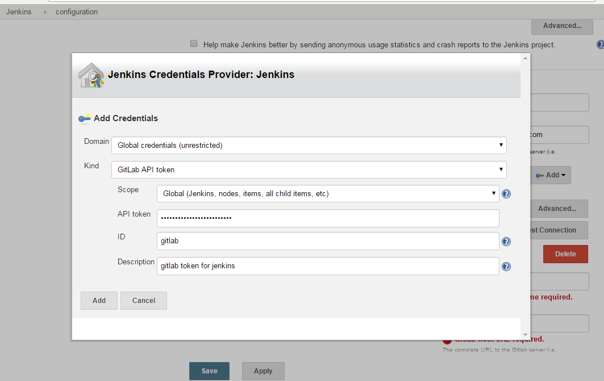
11. Click on the Credentials drop down list to add “Gitlab Api Token” and enter the API token(that was asked to save securely in step 4) in jenkins as shown below.
12. Advance to the next step and make sure that “Kind” credential is selected in the dropdown. If it doesn’t appear, you need to add the “credentials” plugin.
13. In case, if that doesn’t work, install the “Plain Credentials” plugin and restart Jenkins. After that it should be selectable.
14. Go back to Jenkins page and navigate to “Manage -> Global Tool Configuration,” and scroll down to the “Git” section. Specify the path where you installed the Git (should be latest version — 2.11) and save it.
15. Enter the local Git location as shown above.
16. We can now see, Jenkins is configured into our Gitlab.
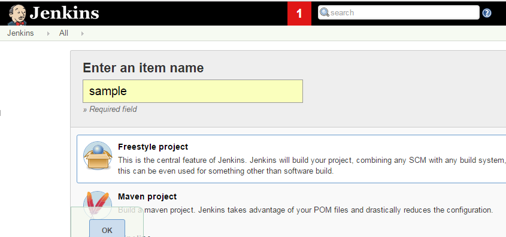
17. A job to continuously build our application can be setup using the main screen of Jenkins following the below steps
a) Click on create a new “freestyle” job:
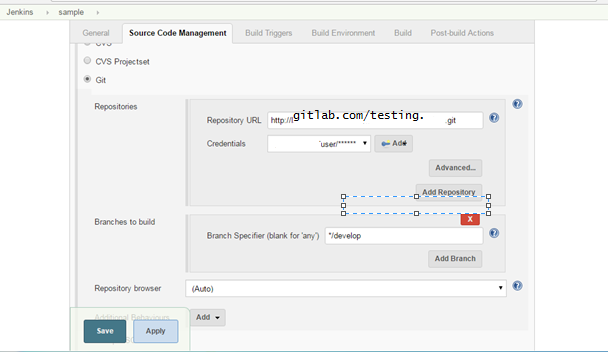
b) Scroll down to Source Code management, select Git, and enter your repo details:
C) Scroll down to “Build Trigger”, and select “Poll SCM” option by enabling the poll SCM and entering a cron expression**** in the Schedule text box we can get Jenkins to poll the Git repository for any changes at scheduled time.
18. Click on save button and trigger a build, make changes to your code commit and push it. Now it will automatically notify Jenkins to build your code.

Configure Artifactory repository details in Jenkins:

We use JFrog Artifactory as binary repository mangment tool. Nexus is also another binary repository management toll widely used.
1-we need to have common user to communicate between Jenkins and artifactory, login to the Jforg Artifactory console as an administrator.
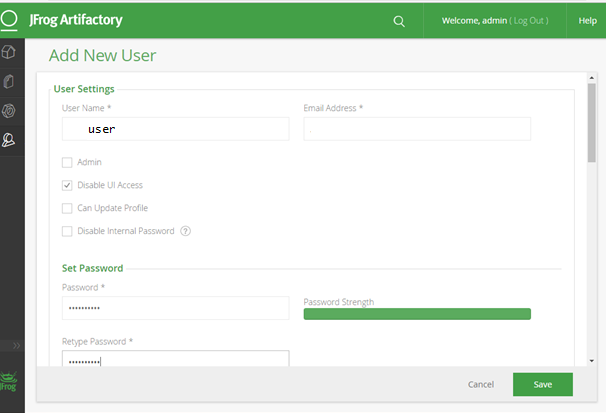
a) Go to Admin area navigate to Users Click on “New User” button which takes you to the below screen.
b) Enter the desired fields and make sure to tick Disable UI Access (We are using this user only for connectivity between Jenkins and Jforg Artifactory not to access the UI) Click save.
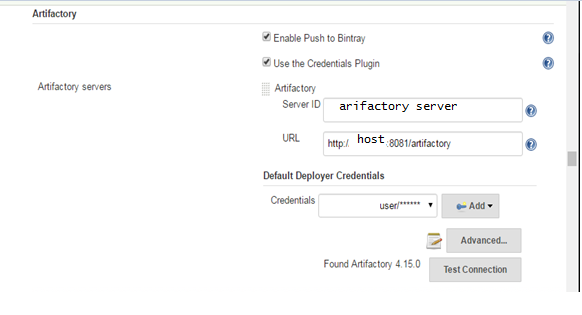
c) On Jenkins console navigate to “Manage Jenkins” scroll down and go to “Artifactory ”location and configure as shown below and click on test connection. You will find Artifactory version if connection is success .

Configure Maven path in Jenkins:

To build the java based appication we use maven as a build tool. Firstly, we install maven in the jenkins box/server, Next go to Jenkins page click on “Manage > Global Tool Configuration,” and scroll down to the “Maven” section. You’ll need to enter the path where you have installed maven into Jenkins.

Configure Sonar Qube details in Jenkins:

To run unit tests, code coverage tests and to perform code coverage analysis we use Sonar Qube and we want to publish code coverage analysis in Sonar Qube for every successful build job.
a) Login to Jenkins as administrator click on Manage Jenkins and navigate to Manage Plugins to install “SonarQube Plugin
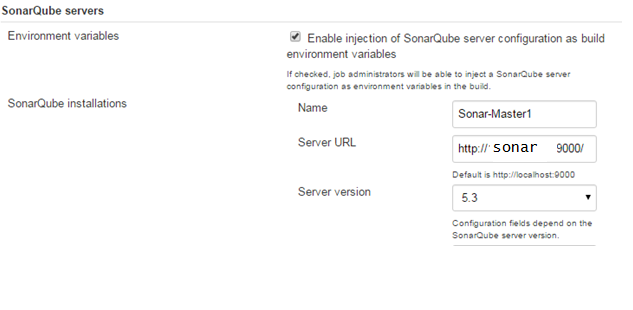
b) Goto Configure System of Jenkins to provide “SonarQube” server details as below.
c) Then configure SonarQube to jobs in Jenkins, go to build session enable “Prepare SonarQube Scanner environment” to inject environment variables related to the chosen SonarQube installation.
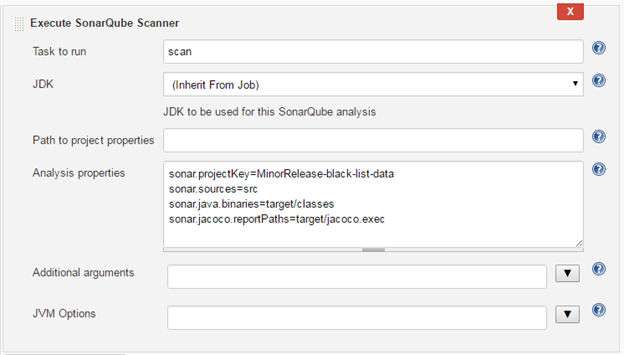
d) Add post-build step to configure “Execute SonarQube Scanner”.
Note: Always mention the sonar.projectKey=JobName(your/respective job name)
e) Analysis properties allows to pass some configuration parameters to SonarQube.
f). Once job is success you will find the output by clicking on “SonarQube”.

8/3/17

Installing SpagoBI 5.1 on Centos 6.5 -Tomcat 7 with MySQL 5.6.

What is the SpagoBI project?
The SpagoBI project is a free software/open source initiative by the SpagoBI Labs of Engineering Group. It aims to realize the most complete 100% open source business intelligence suite, aggregating developers, integrators, companies, users and passionate people in an open community.

Prerequiste Downloads and setup.

  1. Install JAVA JDK.
  2. Install MySQL on CentOS 6.5, HOWTO Install Instructions are here.
  3. Download SpagoBI 5.1.
  4. Download Mysql Script from SpagoBI Website.
  5. Download Mysql Connector.
  6. Download Tomcat 7. (Optional - if you want to run SpagoBI on a Dedicated Tomcat Server.)

Extracting SpagoBI.

Extract All-In-One-SpagoBI-5.1-21012015.zip
[ahmed@ahmed-server ~]# unzip All-In-One-SpagoBI-5.1-21012015.zip
Move to /opt and create a softlink as spagobi
[ahmed@ahmed-server ~]# mv All-In-One-SpagoBI-5.1-21012015 /opt/
[ahmed@ahmed-server ~]# ln -s  /opt/All-In-One-SpagoBI-5.1-21012015 /opt/spagobi
Setting Heap memory in setenv.sh
[ahmed@ahmed-server ~]# vim /opt/spagobi/bin/setenv.sh
Add below content. Depending on the Server Memory set the Xms and Xmxappropriately.
export JAVA_OPTS="$JAVA_OPTS\
  -server\
  -Xms8g\
  -Xmx16g\
  -XX:MaxPermSize=512m\
  -XX:MaxNewSize=512m\
  -XX:NewSize=512m\
  -XX:SurvivorRatio=12"

Update SpagoBI lib with Mysql Connector.

Extract the connector.
[ahmed@ahmed-server ~]# tar xvzf mysql-connector-java-5.1.34.tar.gz
Copy jar to spago lib directory.
[ahmed@ahmed-server ~]# cp mysql-connector-java-5.1.34/mysql-connector-java-5.1.34-bin.jar /opt/spagobi/lib/
NOTE : If you already have a older connector in the directory /opt/spagobi/lib/ then remove it. USE THE LATEST CONNECTOR.

Setting up Mysql Database.

Before we populated the scripts we need to create basic setup on Mysql.

Setting spagobi Database and spagobi User.

Assuming that mysql-server is installed and we have set the root password as root@123.
[ahmed@ahmed-server ~]# mysql -uroot -proot@123
Warning: Using a password on the command line interface can be insecure.
Welcome to the MySQL monitor.  Commands end with ; or \g.
Your MySQL connection id is 475739
Server version: 5.6.21-log MySQL Community Server (GPL)

Copyright (c) 2000, 2014, Oracle and/or its affiliates. All rights reserved.

Oracle is a registered trademark of Oracle Corporation and/or its
affiliates. Other names may be trademarks of their respective
owners.

Type 'help;' or '\h' for help. Type '\c' to clear the current input statement.
Creating spagobi database.
mysql> create database spagobi;
Query OK, 0 rows affected (0.00 sec)
Creating a user spagobi with password as spagobi for spagobi database.
mysql> grant all privileges on spagobi.* to spagobi@localhost identified by 'spagobi';
Query OK, 0 rows affected (0.00 sec)
Optional - If we are running mysql in a different machine then we have give permission to the server which is trying to connect to mysql-server. Assuming that web server is 10.10.10.18 we give the permission as below.
mysql> grant all privileges on spagobi.* to spagobi@10.10.10.18 identified by 'spagobi';
Query OK, 0 rows affected (0.00 sec)
Commit and we are done.
mysql> commit;
Query OK, 0 rows affected (0.00 sec)

mysql> exit

Populating Tables for SpagoBI.

Extract script from mysql-dbscript-5.1.0_19012015.zip
[ahmed@ahmed-server ~]# mkdir mysql-spagobi
[ahmed@ahmed-server ~]# cd mysql-spagobi
[ahmed@ahmed-server mysql-spagobi]# unzip mysql-dbscript-5.1.0_19012015.zip 
[ahmed@ahmed-server mysql-spagobi]# ls -l
total 136
-rw-r--r-- 1 root root   4400 Nov 19 12:38 MySQL_create_quartz_schema.sql
-rw-r--r-- 1 root root   7954 Dec  3 11:44 MySQL_create_social.sql
-rw-r--r-- 1 root root 111910 Nov 19 12:38 MySQL_create.sql
-rw-r--r-- 1 root root    856 Nov 19 12:38 MySQL_drop_quartz_tables.sql
-rw-r--r-- 1 root root   3821 Nov 19 12:38 MySQL_drop.sql
[ahmed@ahmed-server mysql-spagobi]#    
Now lets populate tables.
[ahmed@ahmed-server ~]# mysql -uspagobi -pspagobi spagobi < MySQL_create.sql
[ahmed@ahmed-server ~]# mysql -uspagobi -pspagobi spagobi < MySQL_create_quartz_schema.sql
[ahmed@ahmed-server ~]# mysql -uspagobi -pspagobi spagobi < MySQL_create_social.sql
Now we are ready.

SpagoBI MySQL Connection Setup.

Update server.xml.

/opt/spagobi/conf/server.xml
Change the GlobalNamingResources to the below tag.


Update context.xml.

/opt/spagobi/webapps/SpagoBI/META-INF/context.xml
Change the contents of the file as below.


Update hibernate.cfg.xml.

/opt/spagobi/webapps/SpagoBI/WEB-INF/classes/hibernate.cfg.xml
Update the hibernate-configuration tag, leave the other tag details as it is.
 
     
    java:/comp/env/jdbc/spagobi 
    org.hibernate.dialect.MySQLDialect
    false 
    false 


Update jbpm.hibernate.cfg.xml.

/opt/spagobi/webapps/SpagoBI/WEB-INF/classes/jbpm.hibernate.cfg.xml
Update the hibernate-configuration tag, leave the other tag details as it is.
 
     
        org.hibernate.dialect.MySQLDialect
        java:comp/env/jdbc/spagobi 
        false 
        false 


Update quartz.properties.

/opt/spagobi/webapps/SpagoBI/WEB-INF/classes/quartz.properties
Comment below
org.quartz.jobStore.driverDelegateClass=org.quartz.impl.jdbcjobstore.HSQLDBDelegate 
Uncomment Below for Mysql.
org.quartz.jobStore.driverDelegateClass=org.quartz.impl.jdbcjobstore.StdJDBCDelegate 

Starting SpagoBI Server.

Lets go to Location and start.
[ahmed@ahmed-server ~]# cd /opt/spagobi/bin
Since we are not using HSQLDB and have configured MySQL, we need to start just the tomcat server.
[ahmed@ahmed-server bin]# ./startup.sh 
This will start the server on 8080.
"SPAGO BI"

Moving SpagoBI to Dedicated Tomcat7 Server.

NOTE : Before we start stop spagobi server, which we started earlier.
[ahmed@ahmed-server ~]# /opt/spagobi/bin/shutdown.sh
Extract tomcat to /opt and create a softlink as tomcat.
[ahmed@ahmed-server ~]# tar xvzf apache-tomcat-7.0.59.tar.gz -C /opt
[ahmed@ahmed-server ~]# ln -s /opt/apache-tomcat-7.0.59 /opt/tomcat

Copy lib Files.

Copy without overwrite.
[ahmed@ahmed-server ~]# cp -n /opt/spagobi/lib/* /opt/tomcat/lib/
Option Details
-n, --no-clobber
      do  not  overwrite  an  existing  file  (overrides a previous -i option)

Copy webapps Directory.

Remove existing webapps directory as we dont need it any more.
[ahmed@ahmed-server ~]# rm -rf /opt/tomcat/webapps
Since we have already updated all the config files in the /opt/spagobi/webappsdirectory, we will copy them as it is.
[ahmed@ahmed-server ~]# cp -f /opt/spagobi/webapps /opt/tomcat/

Copy conf server.xml from /opt/spago.

Lets copy server.xml and overwrite the file.
[ahmed@ahmed-server ~]# cp -f /opt/spagobi/conf/server.xml /opt/tomcat/conf/server.xml

Copy setenv.sh to /opt/tomcat/bin.

Finally copy setenv.sh file to bin directory.
[ahmed@ahmed-server ~]# cp  /opt/spagobi/bin/setenv.sh  /opt/tomcat/bin/

Starting Tomcat Server.

[ahmed@ahmed-server ~]# sh /opt/tomcat/bin/startup.sh
We are done.